
Overview
BallonTranslator provides powerful image editing tools to manually refine text removal and fix inpainting results. Access image editing by clicking the Paint Mode button (P) in the bottom toolbar.Drawing Tools
Switch between tools using keyboard shortcuts or the drawing panel:| Tool | Shortcut | Description |
|---|---|---|
| Hand Tool | H | Pan and navigate the canvas |
| Inpaint Brush | J | Paint areas to inpaint |
| Pen Tool | B | Draw annotations on the image |
| Rectangle Tool | R | Create rectangular inpaint regions |
Inpaint Brush
The inpaint brush lets you manually paint areas that need text removal.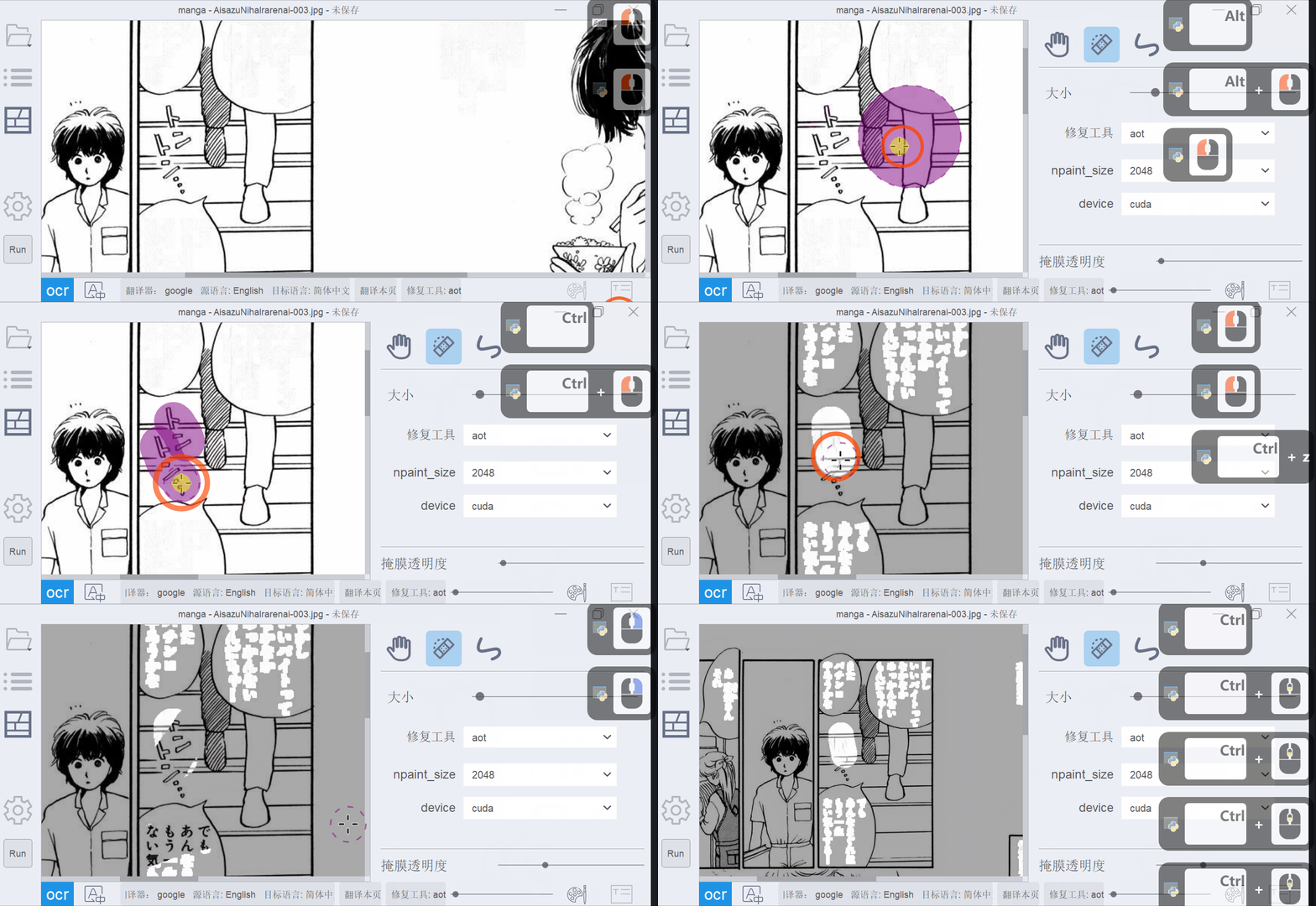
Using the Inpaint Brush
Adjust Brush Settings
Configure brush properties:
- Thickness: Adjust brush size (1-1000 pixels)
- Shape: Choose Circle or Rectangle
- Inpainter: Select inpainting algorithm
Paint the Mask
- Left-click and drag to paint areas to inpaint
- Right-click and drag to erase parts of the mask
- Hold Ctrl while painting to paint multiple strokes before inpainting
Brush Properties
Thickness Slider- Range: 1-1000 pixels
- Adjusts the width of the brush stroke
- Larger brushes work well for covering large areas
- Circle: Smooth, natural strokes
- Rectangle: Hard-edged strokes for precise selections
- Choose from multiple inpainting algorithms
- Different algorithms work better for different image types
Rectangle Tool
The rectangle tool quickly removes text in rectangular regions using automatic mask detection.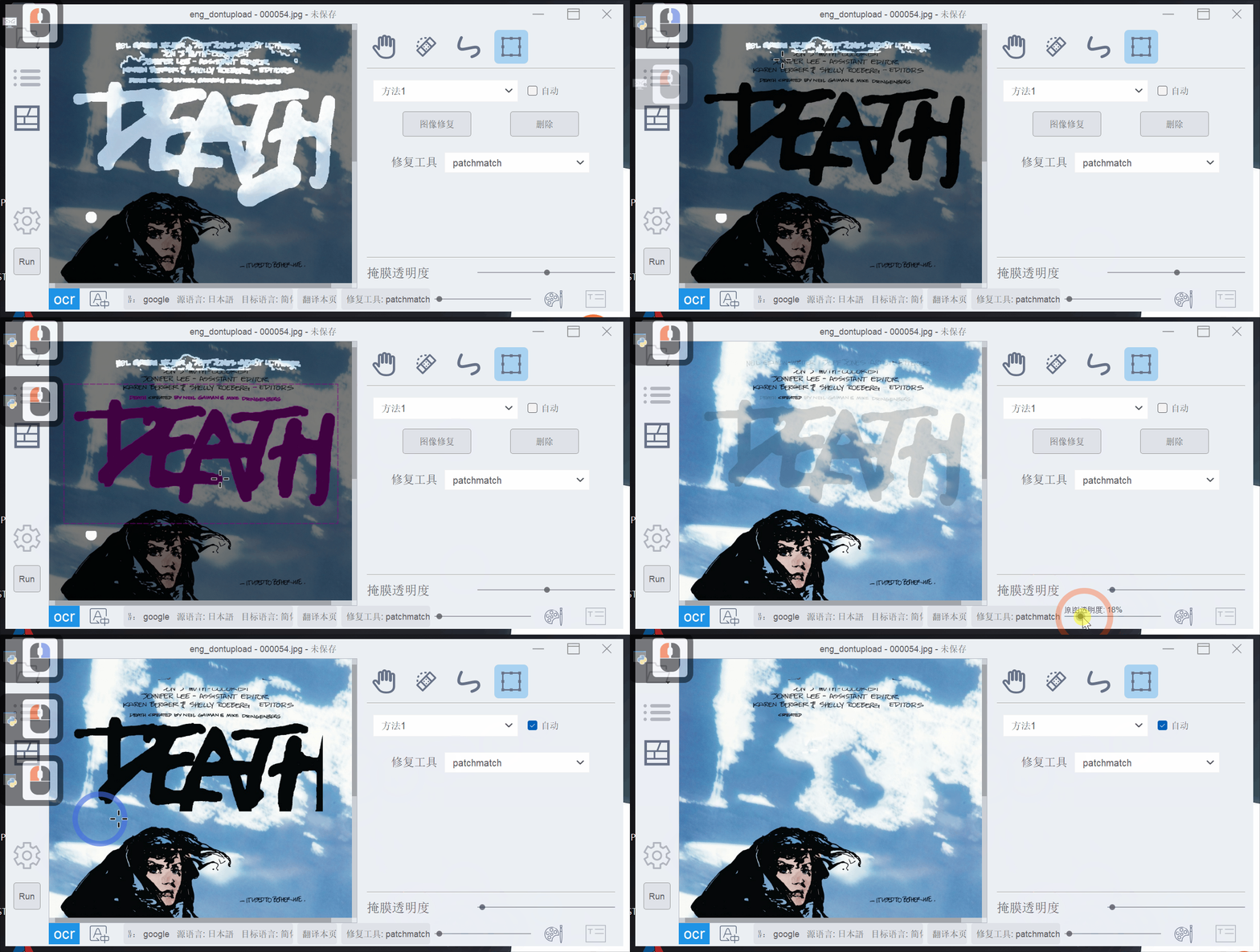
Using the Rectangle Tool
Draw Rectangle
- Left-click and drag to create a rectangle covering the text
- Right-click and drag to create a rectangle that erases inpainting results
Draw the rectangle slightly larger than the text block for better results.
Rectangle Tool Options
Detection MethodsMethod 1
Method 1
Automatic mask detection using edge detection and flood fill. Works well for simple backgrounds and clear text boundaries.
Method 2
Method 2
Alternative detection algorithm. Try this if Method 1 doesn’t produce good results.
Use Existing Mask
Use Existing Mask
Uses the mask from previous detection/OCR results without recalculating.
- Expands or shrinks the detected mask
- Range: 0-100 pixels
- Helps cover text that extends beyond the detected region
- When enabled: Rectangle inpaints immediately after drawing
- When disabled: Shows preview, click Inpaint or press Space to execute
Pen Tool
Draw annotations, notes, or corrections directly on the image.Configure Pen
- Color: Click the color picker to choose pen color
- Alpha: Adjust opacity (0-255)
- Thickness: Set stroke width (1-1000 pixels)
- Shape: Circle or Rectangle brush shape
Mask Transparency
Adjust the Mask Opacity slider in the drawing panel to control the visibility of detected text masks overlaid on the image.- Useful for verifying detection accuracy
- Only visible in Paint Mode (not Text Edit mode)
Canvas Controls
Zoom and Pan
- Ctrl + Mouse Wheel: Zoom in/out
- Ctrl + Plus/Minus: Zoom in/out
- Middle Mouse Button + Drag: Pan the canvas
- Hand Tool (H) + Left-click Drag: Pan the canvas
Layer Transparency
Original Layer Transparency
Original Layer Transparency
Control the visibility of the original image:
- Adjust the slider in the bottom panel
- Press 0-9 keys to set opacity (0=0%, 9=90%, etc.)
- Useful for comparing before/after inpainting
Text Layer Transparency
Text Layer Transparency
In Text Edit mode, control translated text visibility:
- Bottom panel slider adjusts opacity
- Press 0-9 in Text Edit mode
- Helpful for checking text positioning
Undo/Redo
All drawing and inpainting operations support undo/redo:- Ctrl+Z: Undo
- Ctrl+Y: Redo
Undo/redo stacks are cleared when changing pages. The current page is auto-saved before page navigation.
Inpainting Algorithms
BallonTranslator supports multiple inpainting backends:- AOT: Deep learning model from manga-image-translator
- PatchMatch: Classic non-DL algorithm (same as Photoshop’s content-aware fill)
- LAMA: Fine-tuned LAMA model
Configure the default inpainter in Settings → Inpainting or click the gear icon next to the inpainter selector.
Performance Tips
- GPU Acceleration: Inpainting is much faster with CUDA-enabled GPUs
- Enlarge Windows: The rectangle tool automatically enlarges the inpaint region for better results
- Mask Preview: Use the purple mask preview to verify detection before inpainting
- Multiple Attempts: Don’t hesitate to try different detection methods or redraw rectangles
Next Steps
Automated Translation
Learn how the automated pipeline detects and removes text
Text Editing
Edit and format the translated text after inpainting