
Overview
BallonTranslator provides a comprehensive text editing system with WYSIWYG rich text formatting, search/replace functionality, and document import/export capabilities. Switch to Text Edit Mode by pressing T or clicking the text edit button in the bottom toolbar.Text Editing Interface
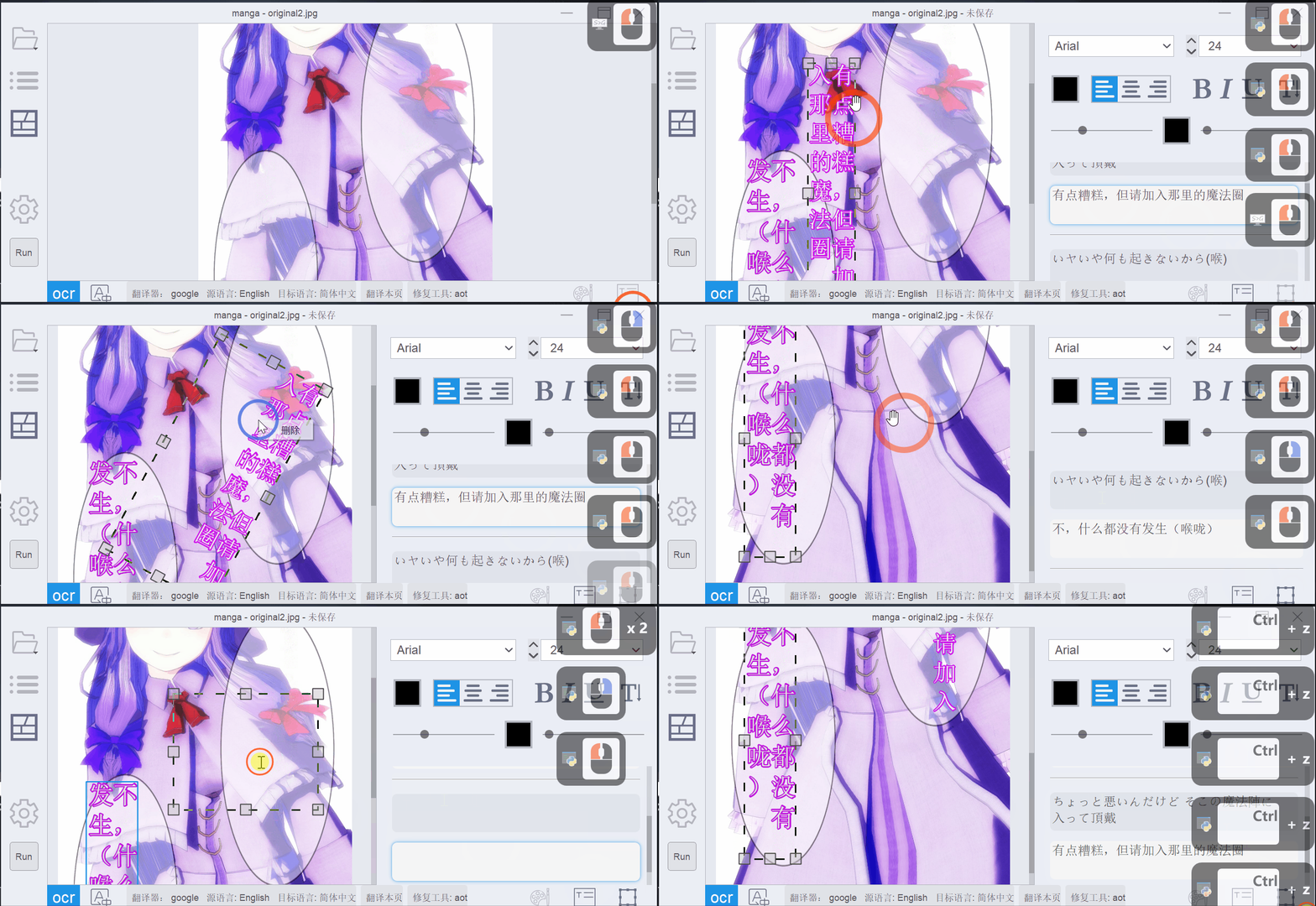 The text editing panel on the right side displays:
- Source Text Editor: Original detected/OCR’d text (top)
- Translation Editor: Translated text (bottom)
- Font Formatting Panel: Rich text formatting controls
Creating Text Blocks
Add new text blocks manually using the text block creation tool:Text Formatting
Basic Formatting
Apply common text styles using keyboard shortcuts or the formatting toolbar:| Format | Shortcut | Description |
|---|---|---|
| Bold | Ctrl+B | Make text bold |
| Italic | Ctrl+I | Italicize text |
| Underline | Ctrl+U | Underline text |
Font Properties
The formatting panel provides extensive control over text appearance: Font Family- Choose from system fonts or custom-loaded fonts
- Filter to show only custom fonts (configurable)
- Adjust text size in points
- Auto-sizing attempts to fit text within balloon
- Text Color: Main text fill color
- Stroke Color: Text outline/stroke color
- Stroke Width: Thickness of text outline
- Opacity: Text transparency (0-100%)
- Shadow: Add drop shadow to text
- Shadow offset X/Y
- Shadow blur radius
- Shadow color
Alignment and Orientation
Alignment- Left align
- Center align
- Right align
- Horizontal
- Vertical
- Adjust spacing between lines
- Important for fitting text in balloons
Advanced Formatting Features
Font Style Presets
Save and reuse text formatting:Font style presets can be imported/exported as JSON files, allowing you to share formatting across projects.
Batch Formatting
Apply formatting to multiple text blocks simultaneously: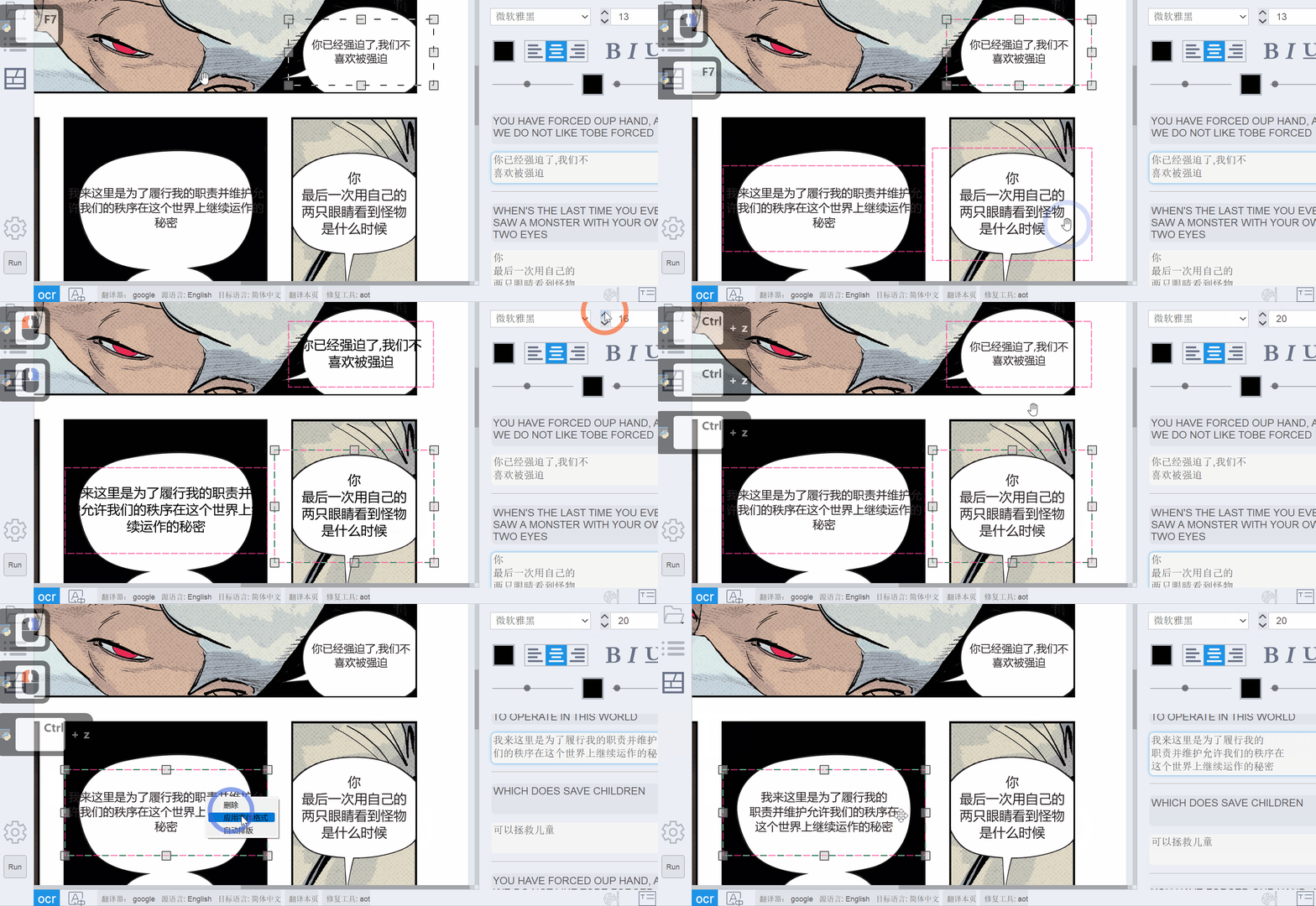
Select Multiple Blocks
- Ctrl+A: Select all text blocks on current page
- Ctrl+Click: Add/remove individual blocks from selection
- Shift+Click: Select a range of blocks
Search and Replace
Page Search
Search and replace text on the current page:Configure Options
- Whole Word: Match complete words only
- Case Sensitive: Respect letter case
- Regex: Use regular expressions
- Search Range: Source text, translated text, or both
Global Search
Search across all pages in the project:OCR Selected Text
Re-run OCR on specific text blocks: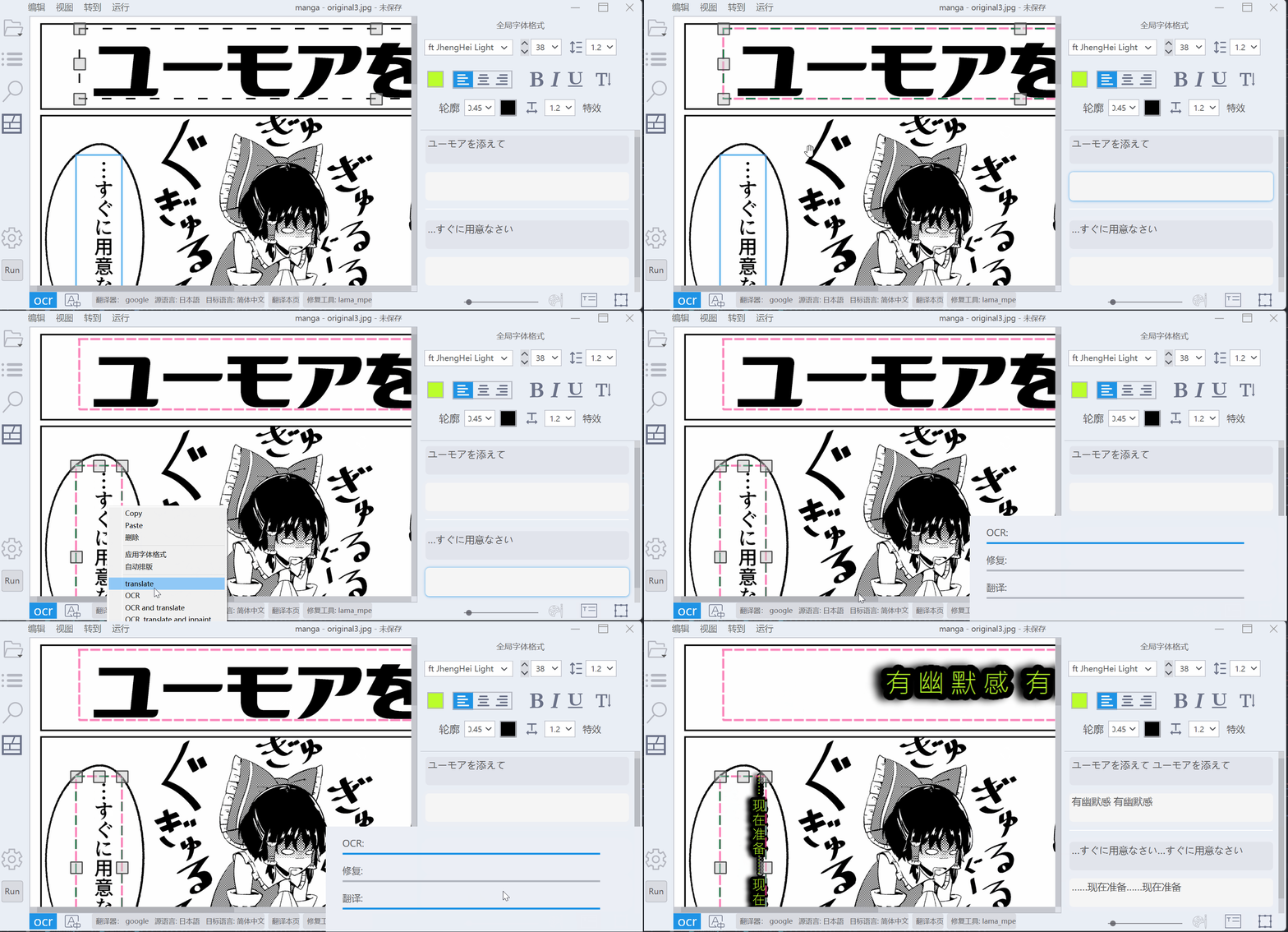
Document Import/Export
Export to Word Document
Export translated text to Microsoft Word format:Choose Options
Select what to export:
- Source text only
- Translated text only
- Both source and translation
Import from Word Document
Import translated text from Word documents:Text structure (page order, block order) must match the exported document for successful import.
Export as Text/Markdown
Export plain text or markdown:- File → Export → Export Source Text (.txt/.md)
- File → Export → Export Translation (.txt/.md)
Text Editor Features
Source Text Editor
- View and edit OCR-detected text
- Corrections sync to the text block on canvas
- Undo/redo supported
Translation Editor
- Edit machine-translated text
- Manual translation input
- Real-time preview on canvas
- Rich text formatting applies to canvas rendering
Selection Menu
When you select text in the editor:- Search on Internet: Search selected text using configured search engine
- Look up in SalaDict: Integration with SalaDict browser extension for dictionary lookups
Configuring SalaDict
Configuring SalaDict
To enable SalaDict integration:
- Install the SalaDict browser extension
- Open Settings → Editor → SalaDict Shortcut
- Set your SalaDict activation shortcut (default: Alt+W)
- Select text in BallonTranslator to trigger dictionary lookup
Text Block Operations
Context Menu
Right-click on a text block for quick actions:- Copy (
Ctrl+C): Copy text block - Paste (
Ctrl+V): Paste text block - Delete (
Ctrl+D): Delete text block - Copy source text (
Ctrl+Shift+C): Copy only source text - Paste source text (
Ctrl+Shift+V): Paste source text - Delete and Recover (
Ctrl+Shift+D): Delete and restore removed text from original image - Apply font formatting: Apply current format panel settings
- Auto layout: Automatically adjust position and size
- Reset Angle: Reset rotation to 0°
- Squeeze: Compress text to fit balloon
- Translate: Run translation on selected blocks
- Inpaint: Run inpainting on selected blocks
Moving and Resizing
Move Text Blocks- Click and drag to move
- Arrow keys for precise positioning
- Drag corner handles to resize
- Shift+drag to maintain aspect ratio
- Drag the rotation handle
- Or right-click → Reset Angle to reset
Navigation and View Controls
Switch Between Text Blocks
- Alt+Arrow Keys or Alt+WASD: Navigate between text blocks
- PageUp/PageDown: While editing a text block, switch to previous/next block
Fold/Unfold Editors
Collapse editors to see more text blocks:- Click the Fold button in the format panel
- Editors change to single-line mode
Show/Hide Editors
Toggle visibility of source and translation editors:- Source Text Toggle: Show/hide source editor
- Translation Toggle: Show/hide translation editor
Keyboard Substitution
Automate text replacement during OCR and translation:Access Substitution Settings
From the Run menu or toolbar:
- OCR Keyword Substitution: Replace text after OCR
- Pre-MT Keyword Substitution: Replace before translation
- MT Keyword Substitution: Replace after translation
Keyword substitution is useful for:
- Fixing common OCR errors
- Standardizing terminology
- Handling character names consistently
Next Steps
Keyboard Shortcuts
View the complete list of keyboard shortcuts
Automated Translation
Learn about the automated translation pipeline